Page 63 - LIT-18626-13-38
P. 63

UF3X13E0.book  Page 54  Tuesday, September 28, 2021  12:57 PM


                                                                 Instrument operation

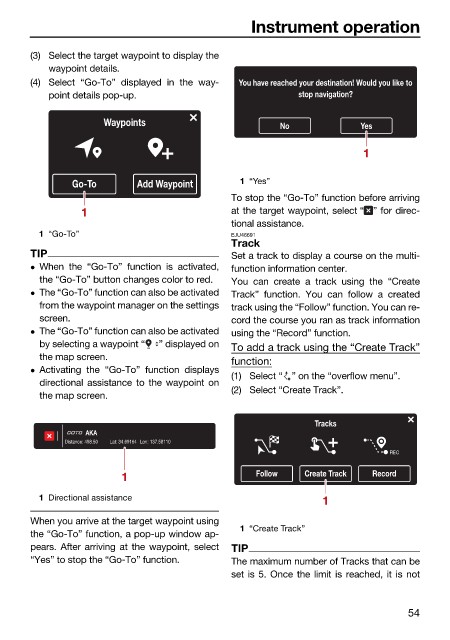
                        (3) Select the target waypoint to display the
                            waypoint details.
                        (4) Select  “Go-To” displayed in the way-  You have reached your destination! Would you like to
                            point details pop-up.                         stop navigation?

                                      Waypoints                        No             Yes


                                                                                      1

                                Go-To       Add Waypoint       1 “Yes”
                                                              To stop the “Go-To” function before arriving
                                  1                           at the target waypoint, select “ ” for direc-
                                                              tional assistance.
                          1 “Go-To”                           EJU46691
                                                              Track
                        TIP                                   Set a track to display a course on the multi-
                         When the “Go-To” function is activated,  function information center.
                          the “Go-To” button changes color to red.  You can  create a  track using the  “Create
                         The “Go-To” function can also be activated  Track” function. You can  follow a created
                          from the waypoint manager on the settings  track using the “Follow” function. You can re-
                          screen.                             cord the course you ran as track information
                         The “Go-To” function can also be activated  using the “Record” function.
                          by selecting a waypoint “  ” displayed on  To add a track using the “Create Track”
                          the map screen.
                                                              function:
                         Activating the “Go-To” function displays
                                                              (1) Select “ ” on the “overflow menu”.
                          directional assistance to the waypoint on
                                                              (2) Select “Create Track”.
                          the map screen.
                                                                             Tracks
                                   AKA
                               Distance: 498.50  Lat: 34.69164 Lon: 137.58110
                                                                                           REC
                                         1                        Follow   Create Track  Record

                          1 Directional assistance                             1

                        When you arrive at the target waypoint using
                                                               1 “Create Track”
                        the “Go-To” function, a pop-up window ap-
                        pears. After arriving at the waypoint, select  TIP
                        “Yes” to stop the “Go-To” function.   The maximum number of Tracks that can be
                                                              set is 5. Once the limit is reached, it is not


                                                                                               54
   58   59   60   61   62   63   64   65   66   67   68