


Page 63 - LIT-18626-13-39
P. 63
UF3V13E0.book Page 54 Thursday, September 30, 2021 2:21 PM
Instrument operation
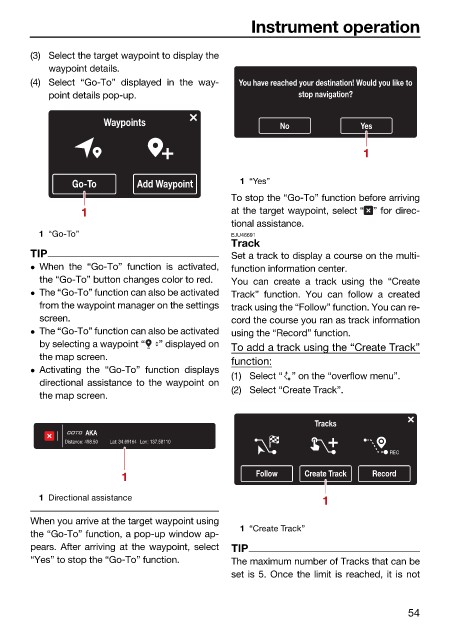
(3) Select the target waypoint to display the
waypoint details.
(4) Select “Go-To” displayed in the way- You have reached your destination! Would you like to
point details pop-up. stop navigation?
Waypoints No Yes
1
Go-To Add Waypoint 1 “Yes”
To stop the “Go-To” function before arriving
1 at the target waypoint, select “ ” for direc-
tional assistance.
1 “Go-To” EJU46691
Track
TIP Set a track to display a course on the multi-
When the “Go-To” function is activated, function information center.
the “Go-To” button changes color to red. You can create a track using the “Create
The “Go-To” function can also be activated Track” function. You can follow a created
from the waypoint manager on the settings track using the “Follow” function. You can re-
screen. cord the course you ran as track information
The “Go-To” function can also be activated using the “Record” function.
by selecting a waypoint “ ” displayed on To add a track using the “Create Track”
the map screen.
function:
Activating the “Go-To” function displays
(1) Select “ ” on the “overflow menu”.
directional assistance to the waypoint on
(2) Select “Create Track”.
the map screen.
Tracks
AKA
Distance: 498.50 Lat: 34.69164 Lon: 137.58110
REC
1 Follow Create Track Record
1 Directional assistance 1
When you arrive at the target waypoint using
1 “Create Track”
the “Go-To” function, a pop-up window ap-
pears. After arriving at the waypoint, select TIP
“Yes” to stop the “Go-To” function. The maximum number of Tracks that can be
set is 5. Once the limit is reached, it is not
54

